GUIDES & ADVICE
IPTV on Fire TV Stick: a UK compatibility and setup checklist
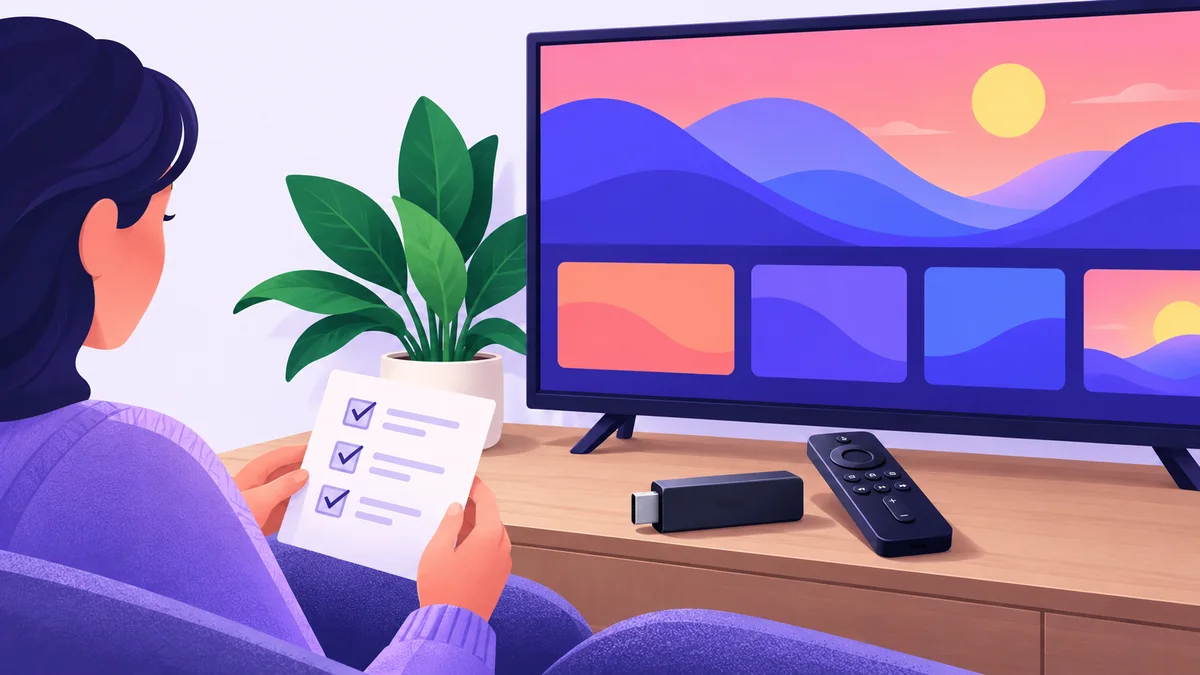
To prepare IPTV on a Fire TV Stick, first confirm the exact device, the intended player and the access method supplied for that application. Then use the official app listing and follow the publisher’s instructions. A guide for another streaming box may use different menus or account fields.
Identify your Fire TV device first
Write down the complete device name and software version from the device settings or its product information. Different generations can have different capabilities and app availability. “Firestick” is a common search term, but it is not a precise model identifier.
Check that the television has the required connection for your device and that the device has a stable power source following its manufacturer’s guidance. A screen input problem is different from a player or subscription problem, so establish that the normal home screen works before changing application settings.
Keep your normal account and region settings consistent with where you use the device. App availability should be checked on the actual device, rather than assumed from a phone screenshot or an old video.
For the first setup, note which remote buttons open navigation and how you return to Home. Familiar controls make it easier to distinguish a frozen application from a simple menu or input issue.
Confirm the player and subscription as separate parts
Ask for the exact application name and publisher, not just a description such as “the IPTV app”. Check whether it is intended for your Fire TV device and whether the supplied account-access method is one it supports.
A player application presents streams; it does not necessarily sell content access. A paid licence can unlock application features without including a subscription. Conversely, buying a subscription does not automatically pay a separate app charge.
Record the two purchases separately if both apply. Keep the application licence information with the publisher’s details, and the subscription duration and renewal information with the service. Their expiry dates may differ.
Do not infer support from a name mentioned in a search result. An article discussing a particular player does not establish that IPTV UK Plans supplies accounts for it. Use the device hub and confirm your intended combination before paying.
Find the genuine app listing
Amazon’s official Fire TV app-download guidance explains finding an app through search, opening its listing and choosing the displayed download option. The interface can vary, so use the guidance appropriate to your device.
Review the publisher, description and any price before installation. If several apps have similar names, pause and confirm which one you need. A copied icon or familiar wording is not enough to identify the correct publisher.
If the intended listing is unavailable, do not assume a random download is equivalent. Ask the application publisher or service about a supported alternative for your model. A missing app can be a compatibility question rather than a fault you can fix by repeatedly searching.
This checklist does not require installing software from an unknown site or changing device security settings. Use an authentic supported distribution route, then follow the publisher’s current instructions for that application.
Prepare access details without exposing them
Before opening the player’s account screen, confirm which details the service supplies and where they belong. Applications may support different access methods and different field names. Do not copy values from an unrelated tutorial.
Enter the information exactly as supplied, checking for accidental spaces, punctuation changes or confusion between similar characters. Avoid repeatedly changing multiple fields at once: it becomes harder to understand which change affected the result.
If a required field is missing from your account instructions, ask before guessing it. Keep passwords, private playlists and account-access URLs out of public messages, photographs and screen recordings.
The illustration in this guide is original conceptual artwork, not a screenshot of an approved player. Its purpose is to show the preparation stage without displaying a real account or claiming a particular software interface is supported.
Make a short, useful first test
Once access is accepted, check whether the expected list appears. Then open an intended item and assess picture and sound. Use the screen and connection you actually plan to watch on, rather than considering a successful login alone a complete test.
Try a second item if the first fails. A problem affecting one channel can have a different cause from every item failing. Note the exact message, approximate time and whether the application remains responsive.
Check the plan’s simultaneous viewing allowance before testing on another device. Otherwise a second stream may introduce a separate condition and make the original symptom harder to interpret.
Keep the initial test simple. Change one relevant setting at a time and record its effect. Reinstalling immediately can remove useful context and may require entering the same account details again.
Check the connection with a meaningful comparison
First confirm that the device can reach the internet. If another application also fails to load, investigate connectivity before treating the IPTV player as the only problem. A working menu does not necessarily establish that a network stream can play.
Notice whether pauses happen only when other devices are using the connection heavily. Where practical and supported by your equipment, compare a different connection arrangement. Record what changed rather than assuming one network setting will solve every interruption.
Resolution labels do not identify a universal speed requirement. The actual stream, connection stability, device and player matter. Avoid treating a single speed-test number as proof that all playback should work or that the service is faultless.
For repeated buffering, use the buffering checklist. It helps you collect whether the issue affects one item, all items, one application or the wider connection before contacting support.
Separate common symptoms before changing settings
The app does not open
Check whether the problem happens before any account screen appears. Record the application name, device model and error. Follow Amazon’s app crash or loading guidance and the publisher’s help. Clearing app data can remove setup information, so understand that step before using it.
The login is rejected
Confirm that you are using the correct access method and that the account is active for this application. A player-licence login and a content-account login can be different. Ask for clarification without posting the actual credentials publicly.
The list loads but one item fails
Record the item and compare another. Include the approximate time and whether sound, picture or both fail. This is more useful than reporting only that “nothing works”.
The app reports an expired licence
Identify whether the message concerns the player or content access. Renewing the wrong product can add a payment without resolving the issue. Review your confirmations and ask the relevant publisher or service.
Understand picture quality and screen limits
A television capable of 4K does not make every stream native 4K. The item itself must be supplied in that format, and the application, device and display path must support the intended playback. Confirm the format of the specific content that matters to you.
Do not assume a package name establishes multiple simultaneous connections. Describe your actual use, such as one television and an occasional phone, and ask what the selected offer permits.
These checks also help when moving to a newer streaming device. More powerful hardware does not automatically change the content-account terms, catalogue or the player’s licence coverage. Confirm each part before replacing equipment.
If the setup already works for your needs, compare plan duration and total separately. The subscription page shows the commercial options; this guide explains preparation rather than recommending a particular hardware purchase.
Send a support message that can be acted on
Include the full model, software version, exact player and publisher, the error text and what you were doing when it appeared. Say whether the problem affects one item or all playback, and mention the checks you have already tried.
Use your request reference if you have one. Leave out account passwords and private access links. If a screenshot is useful, remove those details before sharing it. Start with a short factual description rather than a collection of unrelated settings.
For example: “My listed Fire TV model opens the player, but the list does not load. The message says [exact wording]. Another streaming application loads normally.” Replace the bracketed part in your own message; do not send example text as if it were your actual result.
Continue with Setup Guides for the wider preparation checklist or Contact for an account-specific question. Confirm the package, current total and conditions before arranging access.
Fire TV questions
Does installing a player buy IPTV access?
No. Check what the application supplies and arrange content access separately where required.
Can I follow an Android phone tutorial?
Use device-specific guidance. A phone listing, controls and supported versions may differ from the television application.
Should I keep reinstalling when playback fails?
Record the symptom first. Reinstallation may remove settings without explaining whether the issue is the account, app, content or connection.
Keep a note before replacing your device
If you move to another streaming device, confirm its application listing and any licence-transfer conditions before deleting the old setup. Keep your subscription confirmation separately from the player purchase. A new device can change the software route without changing the account’s simultaneous viewing allowance, so check both before starting playback on a second screen.